
Importing Contacts via CSV
Bring your existing customer list into BizBotify in a couple of minutes.
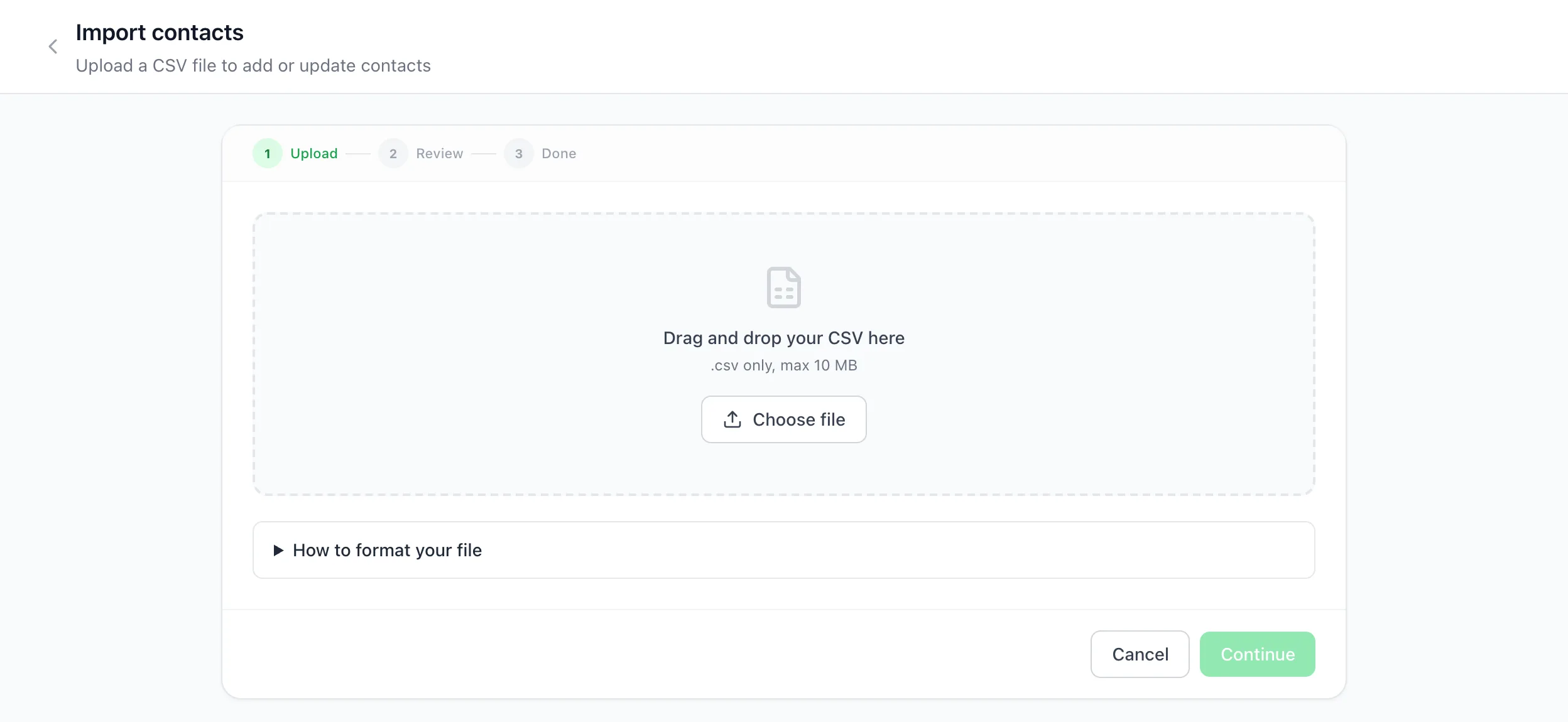
To import contacts into BizBotify, open Contacts → Import, drop in a CSV (max 10 MB) and follow Upload → Review → Done. Only a phone column is required; name, email and tags are optional. Numbers that already exist are updated rather than duplicated, and people who opted out stay opted out.
How to do it
Prepare the file
Click Download sample for the format. Include a phone column with the country code (for example 919876543210); add name, email and tags if you have them. Rows without a country code are skipped.
Upload it
Open Contacts, click Import, and drag in your CSV or click Choose file.
Review and import
Check the preview, optionally tag all imported contacts, and click Import. Existing numbers are updated with any new details.
Frequently asked questions
Which columns does a BizBotify import need?
Only phone, with the country code. Name, email and tags are optional.
What happens to duplicates?
Contacts are matched by phone number, so an existing contact is updated instead of duplicated.
Will importing opt people back in?
No. Anyone who replied STOP stays opted out.
Can I import contacts and message them straight away?
Yes, with an approved template in a campaign, but only message people who agreed to hear from you.