
Creating Message Templates
Templates are how you message customers first, run campaigns and follow up after 24 hours.
A WhatsApp message template is a message Meta approves before you can send it to start or restart a conversation. In BizBotify, open Library → WhatsApp Templates → Create Template, choose the number, category and language, write the body (or click Draft with AI), add an optional header and buttons, give sample values, and click Submit to Meta. Approval usually takes minutes and at most a day.
How to do it
Start a template
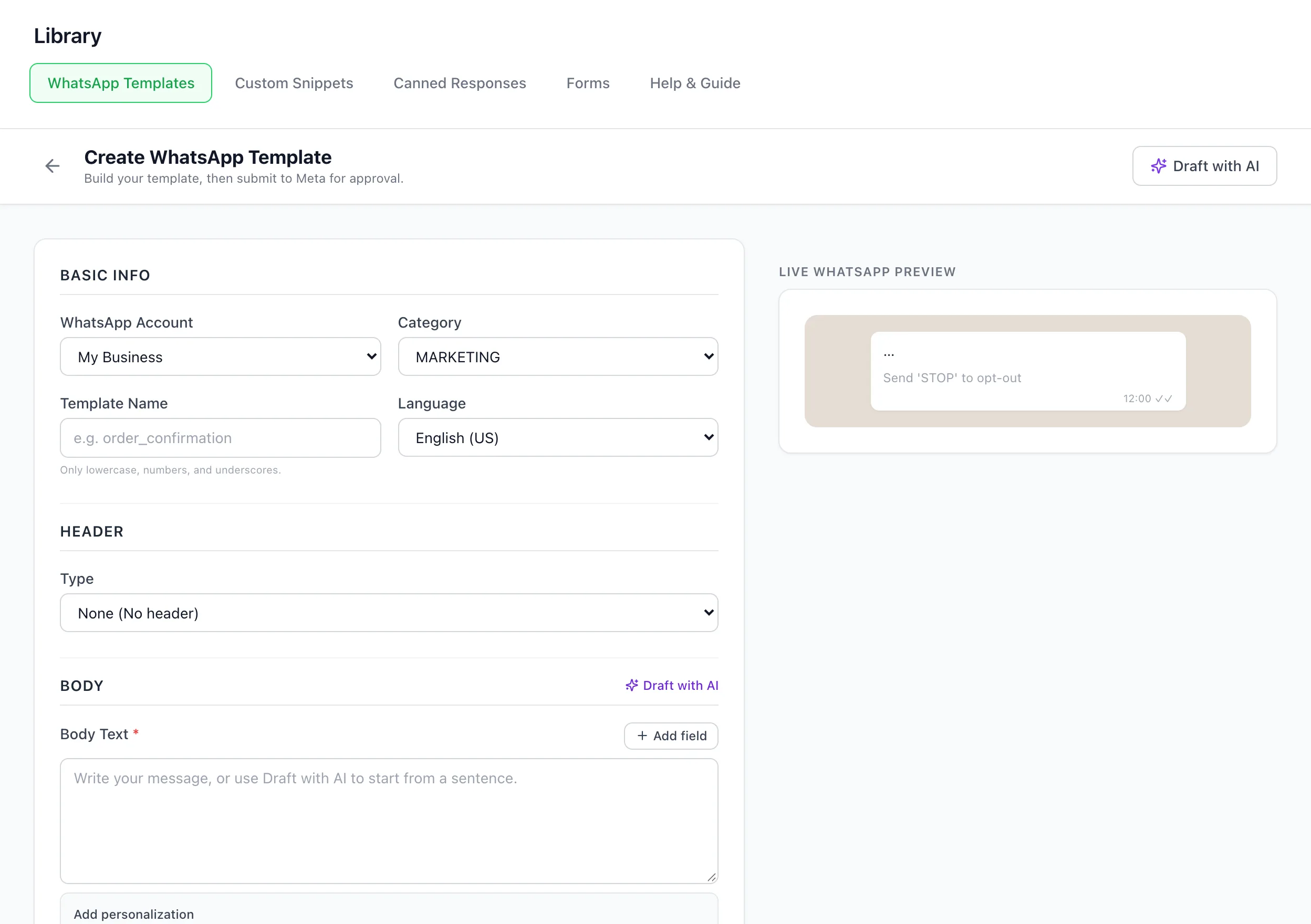
Open Library → WhatsApp Templates and click Create Template. Choose the WhatsApp account, Category (Marketing, Utility or Authentication), Language and a name in lowercase with underscores, such as order_confirmation; names cannot be changed later.
Write the message
Type the body or click Draft with AI and describe it in a sentence. Add personal fields with Add field; they count up from {{1}} with no gaps. Give a sample value for every field.
Add a header and buttons (optional)
Add a text, image, video or document header, and buttons: Visit Website, Call Phone, WhatsApp Call, Open Form for a WhatsApp Form, or Quick Reply to start a chatbot.
Submit to Meta
Click Submit to Meta. Status moves from Pending to Approved or Rejected. Click Sync from Meta to pull changes made in WhatsApp Manager.
Frequently asked questions
How long does WhatsApp template approval take?
Usually a few minutes and at most about a day. The status updates in BizBotify; click Sync from Meta to refresh.
Why was my template rejected?
Common reasons are the wrong category, missing sample values, fields that skip numbers ({1} or {{1}} then {{3}}) or promotional wording in a Utility template. Fix it and resubmit.
Can I change a template's category?
Only while it is Rejected. Meta decides the category of approved templates.
Which category should I choose?
Marketing for offers and re-engagement, Utility for order, payment and booking updates, Authentication for one-time passwords. Marketing costs more per message.