
Setting Up AI Auto-Reply
Let the AI answer customers' questions in their own words, and decide exactly when it steps in.
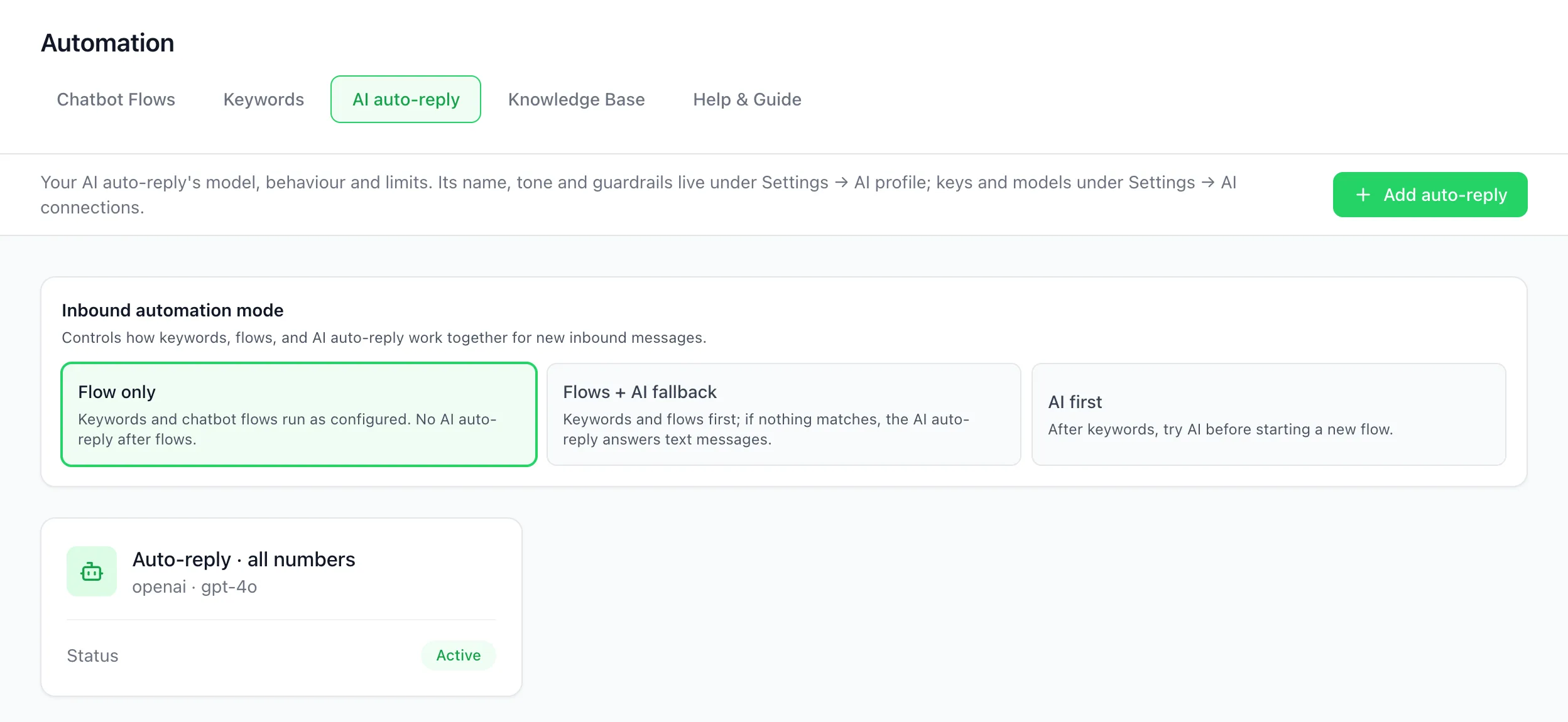
The AI auto-reply in BizBotify answers free-text WhatsApp questions using your AI profile and knowledge base. Open Automation → AI auto-reply, click Add auto-reply, and set it up across its tabs: Connection, Behavior, Escalation, Test Console and Limits. The Inbound automation mode decides whether flows or the AI answer first. Its name, tone and guardrails come from Settings → Integrations → AI profile.
How to do it
Set the AI profile first
In Settings → Integrations → AI profile, set the bot's name, tone (Friendly & Warm, Professional, Formal or Concise & Direct), language and guardrails. See the AI chatbot guide.
Add the auto-reply
Open Automation → AI auto-reply and click Add auto-reply. On the Connection tab it runs on BizBotify AI by default; pick another model if you added your own key under AI connections. Tick Auto-reply is active.
Use your knowledge base
On the Behavior tab, tick Include knowledge base context in AI replies so answers come from your knowledge base.
Decide when to escalate
On the Escalation tab, choose when the AI hands over: after a number of AI messages with no resolution, on negative sentiment, when no knowledge base match is found, and what to do if the AI errors.
Choose who answers first
Pick the Inbound automation mode: Flow only, Flows + AI fallback or AI first. Test with the Test Console tab before going live.
Frequently asked questions
Which AI model does the auto-reply use?
BizBotify AI by default, one AI credit per answer. Add your own OpenAI, Anthropic or Google key under Settings → Integrations → AI connections to use another model at no credit cost.
Where do I change the AI's tone?
In Settings → Integrations → AI profile. The tone applies to every AI feature, not just the auto-reply.
Can the AI reply only outside business hours?
There is an availability option, but business hours cannot be set yet, so it behaves as always on.
How do flows and the AI work together?
Pick the inbound automation mode: Flow only (no AI), Flows + AI fallback (flows first, AI answers the rest) or AI first (AI tries before a new flow starts). Keyword rules are checked before either, except when the customer is already in the middle of a flow.