
Building Your Knowledge Base
The facts your AI answers from: your website, price lists and policies.
The Knowledge Base in BizBotify holds the content your WhatsApp AI answers from. Under Automation → Knowledge Base, configure an embedding key once, then click Add Website (one page or a full crawl) or Add Document (upload a file or paste text). Switch it on in the AI auto-reply's Behavior tab, or tick "Answer questions from the knowledge base" on an AI Task block.
How to do it
Configure embeddings once
Give the knowledge base an OpenAI key; this lets the AI search your content. If you already added an OpenAI key under Settings → AI connections, it is used automatically and there is nothing to do. Otherwise open Automation → Knowledge Base, click add a key just for the Knowledge Base under Embedding Config and paste your OpenAI API key.
Add your website
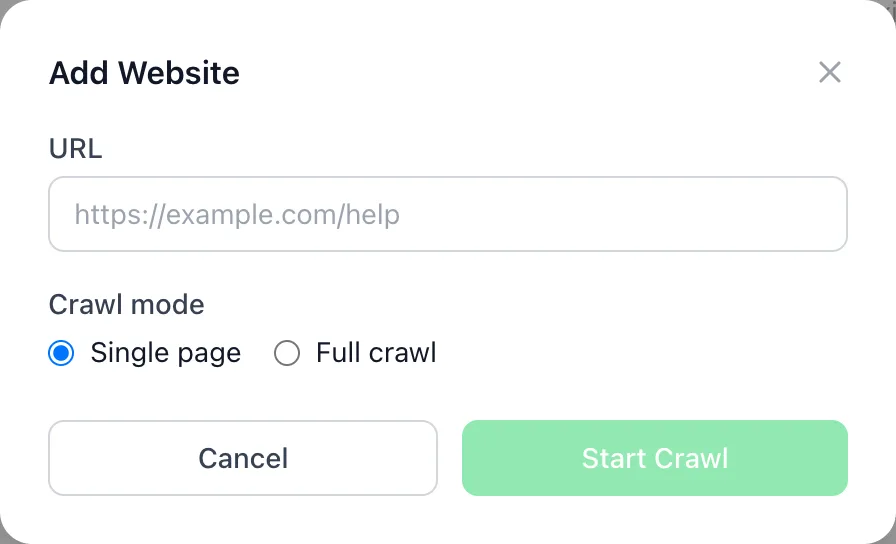
Click Add Website, paste the address and choose Single page or Full crawl (depth 1 to 5), then Start Crawl. Refetch later when your site changes.
Add documents
Click Add Document and use Upload File (up to 10 MB) or Paste Text for price lists, policies and FAQs. Wait until each source shows as ready.
Switch it on for the AI
In Automation → AI auto-reply, open the Behavior tab and tick Include knowledge base context in AI replies. In flows, tick Answer questions from the knowledge base on an AI Task block.
Frequently asked questions
Why does the AI say the team will confirm?
The knowledge base cannot be searched without an OpenAI key, or none of your ready sources covers the question. Add an OpenAI key, add a source that answers it and wait until it is ready.
Do I need my own API key for the knowledge base?
Yes, an OpenAI key. An OpenAI key under Settings → AI connections is used automatically; otherwise add one under Embedding Config on the Knowledge Base page. The AI replies themselves can run on BizBotify AI.
How do I keep answers up to date?
Refetch website sources after you change your site, and replace documents when prices or policies change.