
Assigning Conversations
Give each chat an owner so customers get one clear answer and nothing falls through the cracks.
In BizBotify, open a chat, click ⋯ → Assign conversation… and pick a teammate or a team. The chat moves to their Mine filter and they get a notification. Reassign the same way, or pick Unassigned to return it to the queue. While a chat is assigned, the AI auto-reply stays quiet.
How to do it
Open the chat and click ⋯
In the Inbox, click the conversation, then the ⋯ button at the top of the chat.
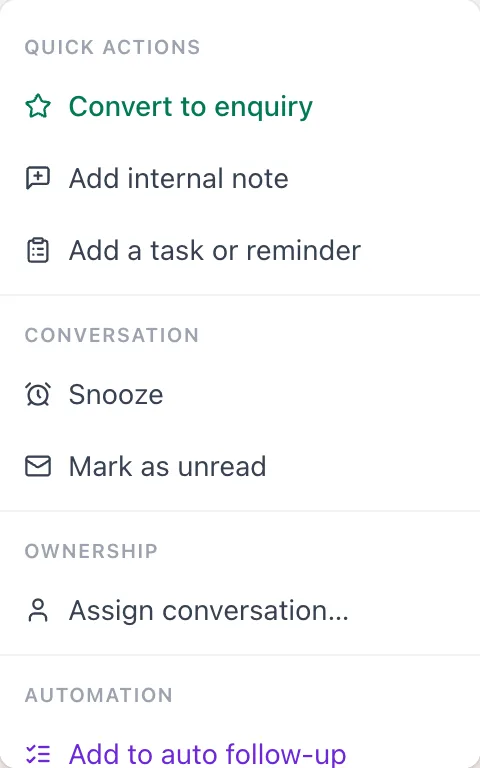
Pick a person or a team
Click Assign conversation…, then choose under Assign to Agent or Assign to Team. It saves as soon as you pick. Use Assign to me to take it yourself.
Reassign or unassign
Open ⋯ → Assign conversation… again and pick someone else, or Unassigned.
Frequently asked questions
Where do my assigned chats appear?
Under the Mine filter at the top of the Inbox. You also get a notification when a chat is assigned to you.
Can I assign a chat to a team instead of a person?
Yes. Choose Assign to Team; anyone in that team can pick it up. Create teams under Settings → Workspace → Teams.
Does assigning stop the chatbot?
The AI auto-reply stays quiet in an assigned chat, and flows and keyword rules with "Don't start while an agent is assigned" stay out of the way.
Can a chatbot assign chats automatically?
Yes. Add an Assign Agent block to a chatbot flow to hand the chat to a person or team.