
Resolve, Reopen and Snooze Conversations
Know at a glance which chats need you now, which are waiting, and which are done.
Every BizBotify chat is Open, Pending, Snoozed or Resolved. Click Resolve at the top of a finished chat; it reopens by itself if the customer writes again. Use ⋯ → Snooze to hide a chat until a set time, when it reopens and notifies whoever owns it. Pending means a chatbot handed the chat to a person.
How to do it
Resolve a finished chat
Click Resolve at the top of the chat. It leaves the Open list; if the customer messages again it reopens automatically.
Reopen a resolved chat
Open it from More → Resolved and click Reopen.
Snooze until later
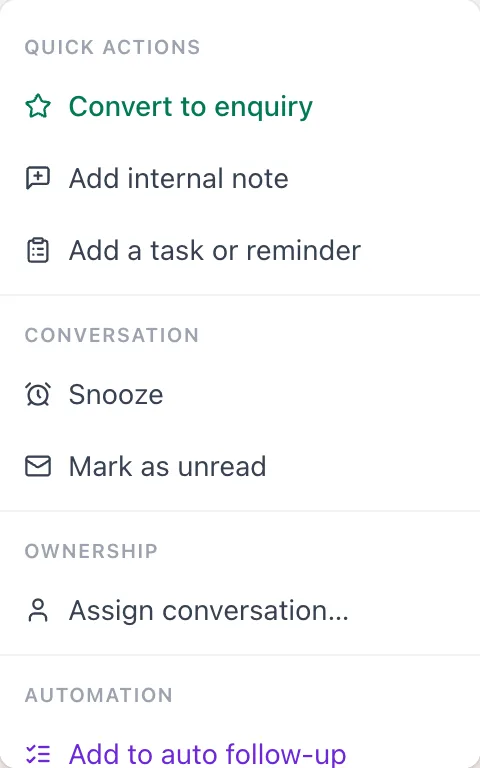
Click ⋯ → Snooze and pick 1 hour, 4 hours, Tomorrow 9am or 3 days. At that time the chat turns Open by itself and its owner gets a bell notification. If the customer writes first, it wakes early.
Mark as unread
Click ⋯ → Mark as unread to bring a chat back to your attention later, just like in WhatsApp.
Frequently asked questions
What does Pending mean?
A chatbot flow handed the chat to a person and it is waiting for your team to pick it up.
Where are resolved chats?
Click More at the top of the Inbox and choose Resolved.
What happens when a snoozed chat wakes up?
It turns Open at the chosen time (Tomorrow 9am uses your workspace timezone) and the person it is assigned to gets a bell notification.
Does resolving a chat let the chatbot run again?
Yes. Resolving hands the chat back to automation, so flows and the AI can answer the next message.