
Setting Up Keyword Rules
Reply instantly when a customer sends a word like "price", "menu" or "location".
A keyword rule in BizBotify sends a fixed reply when a WhatsApp message matches a word or pattern. Open Automation → Keywords, click Add Rule, enter the keywords and match type (Exact, Contains, Starts With or Regex), and pick the response: Text, a WhatsApp Template or one of My Templates. Keyword rules are checked before a new chatbot flow or the AI, but a customer who is already in the middle of a flow gets the flow's next step instead.
How to do it
Add a rule
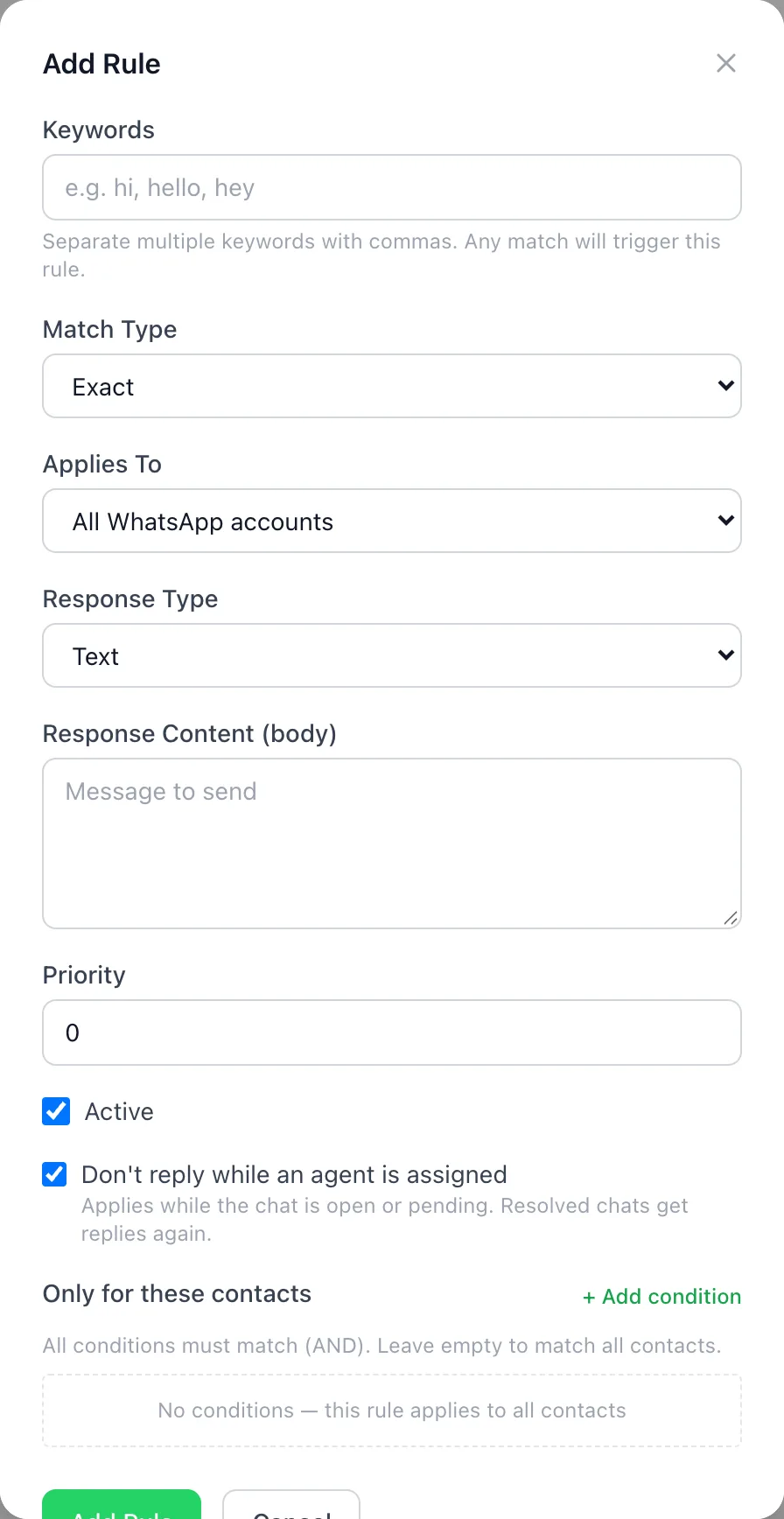
Open Automation → Keywords and click Add Rule. Enter the keywords, separated by commas.
Choose how it matches
Pick the Match Type: Exact (the whole message), Contains, Starts With or Regex. Set Priority if several rules could match; the higher number wins.
Choose the reply
Pick the Response Type: Text, WhatsApp Template (needed outside the 24-hour window) or My Template for a saved snippet. Choose which number it applies to and whether it should stay quiet while an agent is assigned.
Save it
Tick Active and click Add Rule (or Save Changes when editing).
Frequently asked questions
What is the difference between a keyword rule and a chatbot flow?
A keyword rule sends one reply. A chatbot flow is a conversation with questions, branches, forms, AI and hand-over. Keyword rules are checked first, unless the customer is already in the middle of a flow, which then gets the message.
Does "Contains" match inside other words?
Contains matches the keyword anywhere in the message, so choose Exact or Starts With for short words that appear inside longer ones.
Can a keyword rule send a template?
Yes. Choose WhatsApp Template as the response type; use it when the customer may be outside the 24-hour window.
Is STOP a keyword rule?
No. Opt-out words are handled separately under Settings → WhatsApp → Compliance.