
Scheduling a Campaign
Write the campaign now and let it go out at the best time.
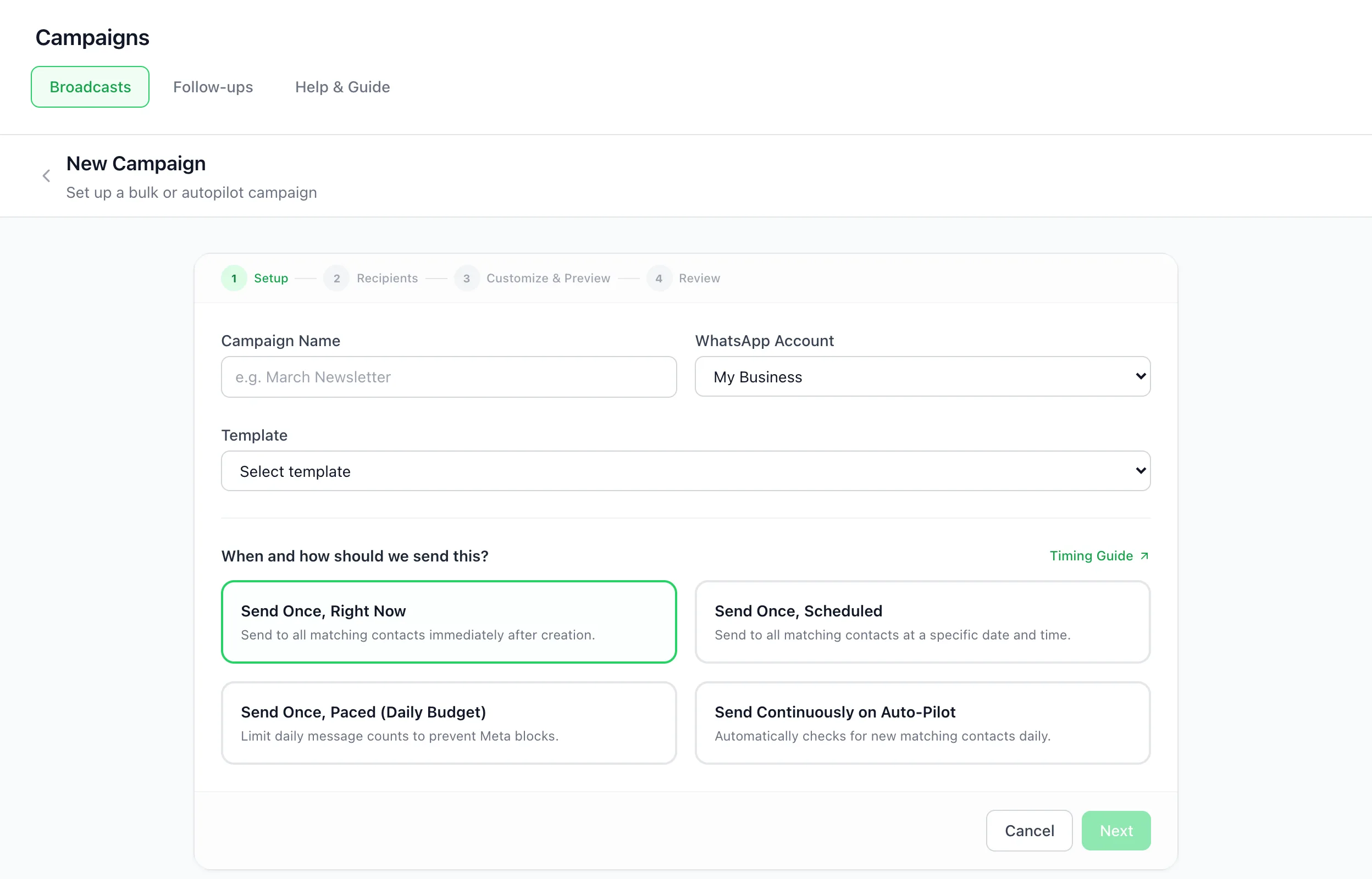
To schedule a WhatsApp campaign in BizBotify, create it under Campaigns → Broadcasts → New Campaign and choose Send Once, Scheduled in the Setup step. Pick the date and time (in your computer's local timezone), finish the wizard and click Create & Schedule. Until it starts you can Edit or Delete it.
How to do it
Choose Send Once, Scheduled
In Campaigns → Broadcasts → New Campaign, fill in the Setup step and pick Send Once, Scheduled. Choose the date and time; it uses your computer's local timezone, shown under the picker.
Finish the wizard
Choose recipients, customize the template and review.
Click Create & Schedule
The campaign shows as Scheduled. Use Edit to change it or Delete to cancel it before it starts.
Frequently asked questions
Which timezone does a scheduled campaign use?
The date and time you pick use your computer's local timezone, shown under the picker in the Setup step.
Can I change a scheduled campaign?
Yes. Until it starts, click Edit to change it or Delete to remove it.
How do I send a large campaign over several days?
Choose Send Once, Paced (Daily Budget) and set how many messages go out per day.
Can a campaign keep sending to new contacts?
Yes. Send Continuously on Auto-Pilot checks daily for new contacts matching your recipients.